Overview
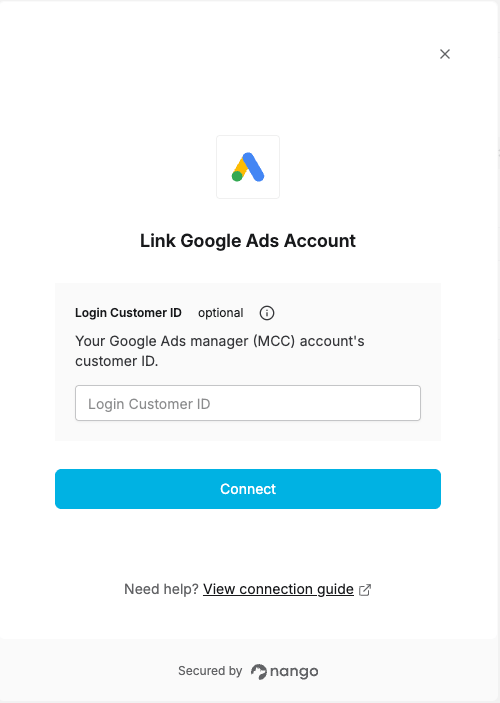
To connect your Google Ads account, you’ll sign in with Google. Depending on how this integration is set up, you may also be asked for:- Manager Account Customer ID (optional) - The Customer ID of the Google Ads manager (MCC) account used to access your account, if your account is managed through one.
Prerequisites:
- You must have a Google Ads account.
Instructions:
Step 1: Finding your Manager Account Customer ID
You’ll only see this field if the app you’re connecting hasn’t already fixed a manager account for every user. If you don’t access your Google Ads account through a manager (MCC) account, leave this field blank. If you do use a manager account:- Sign in to Google Ads.
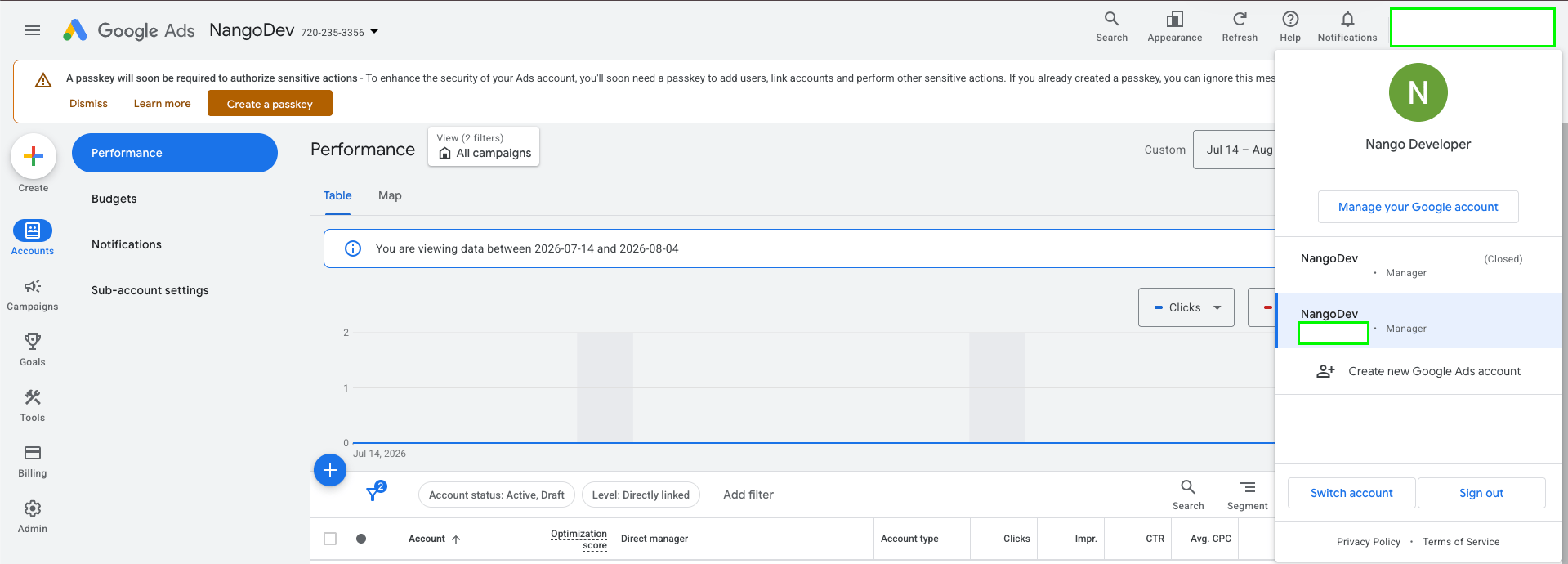
- Click your profile picture in the top-right corner. Your linked manager accounts and their Customer IDs are listed there.
- Alternatively, if you’re currently viewing your account through its manager account, click the account switcher in the top-left corner — the manager account’s Customer ID is shown next to its name.
- Copy the Customer ID (formatted like
123-456-7890) and enter it without hyphens.
Step 2: Authorize with Google
- Open the form where you need to authenticate with Google Ads.
- Enter your Manager Account Customer ID if you were asked for one, or leave it blank otherwise.
- Submit the form, then log in to Google and approve access.